Procedure for experiment:
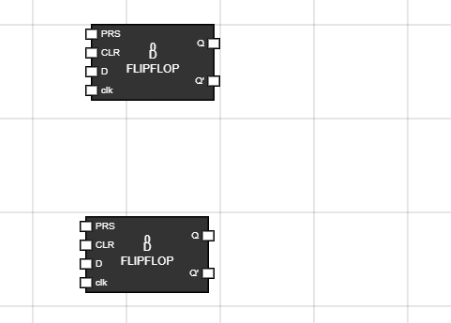
- Step 1: Add Two D Flip-Flops
Navigate to the Components section and click on the D-Flip-Flop button to add two D flip-flops to the workspace.
- Step 2: Get Two Inputs for Both D Flip-Flops and Rename the Inputs
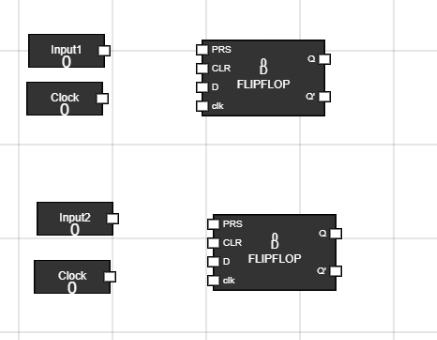
- For the first D flip-flop, go to the input component in the Components section, click to add the input to the workspace, and press CTRL + A in the workspace input to rename it as Input1.
- For the second D flip-flop, repeat the same process and rename the input as Input2.
- For both flip-flops, take one more input component each and rename them as Clock.
- Step 3: Connect Inputs to the D Flip-Flops
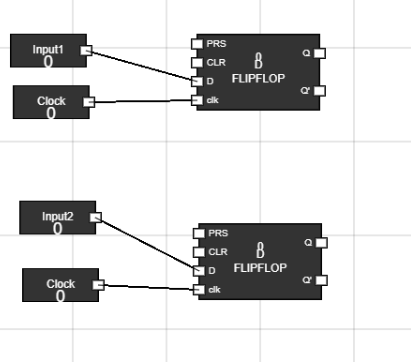
- For the first D flip-flop:
- Click on the white portion of Input1 to get a line (node) that can be connected.
- Drag the line and connect it to the D input of the first flip-flop.
- For the second D flip-flop:
- Click on the white portion of Input2 to get a line (node) that can be connected.
- Drag the line and connect it to the D input of the second flip-flop.
- Step 4: Add an AND Gate
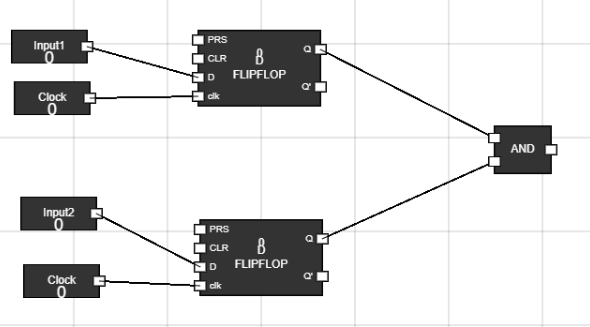
- Select an AND gate from the Components section and place it on the workspace.
- Connect the Q output of the first flip-flop to one input of the AND gate.
- Connect the Q output of the second flip-flop to the second input of the AND gate.
- Step 5: Connect the Output
- Add an Output component from the Components section.
- Connect the output of the AND gate to this output component, so the result from the AND gate can be observed.
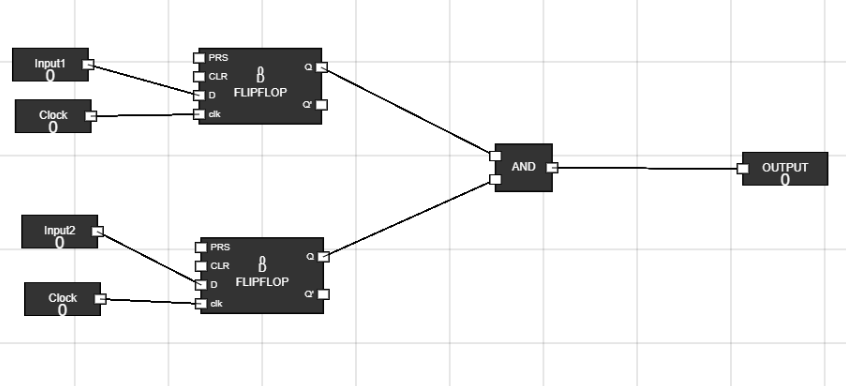
- Step 6: Provide a Clock Input
- Click on the Clock input and set it to 1 to provide the clock signal in both the Flip-Flops.
- Now you can change the inputs and observe changes in the output based on the behavior of the AND gate, as per its truth table.

